Numeric Attributes
To learn the basics of what an Attribute is and how they work on the Player side, click here.
As a Creator, an essential step in setting up your own game is Defining your Attributes. Every Character your Players create will have these attributes, and any Effects created can reference them, unless otherwise specified.
Attribute Definition:
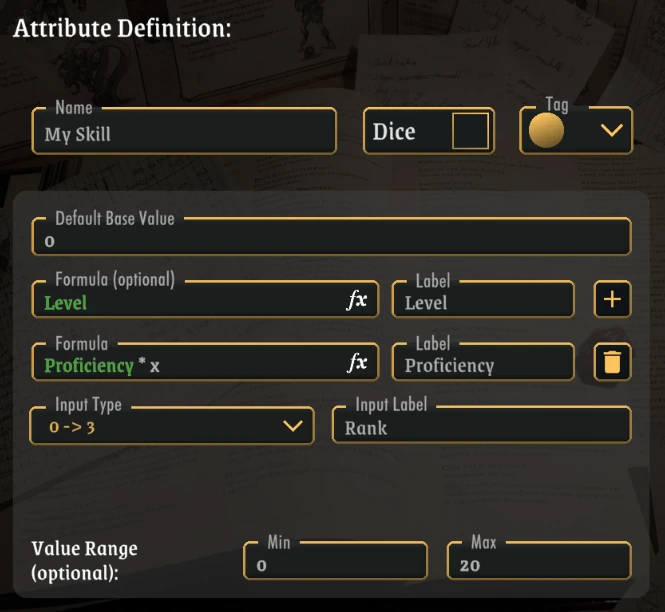
| Field | Type | Details |
|---|---|---|
| Name | text | The name of the attribute - must be unique |
| Tag | color | A creator-only visible tag useful for grouping attributes; no functional impact |
| Default Value | int or Formula | optional: provide a default value for this attribute to be assigned when a character is created. Zero by default |
| Min | int or Formula | Minimum value allowed for the attribute |
| Max | int or Formula | Maximum value allowed for the attribute |
| Formula | Formula | A custom formula that is computed dynamically |
Default Value
The Default Base Value a Character's attribute will have, without any changes. Zero by default.
Formula
A Formula* can be a constant number, or a more complex formula that is computed automatically.
Click to learn the basics about Formulas.
Formula Label
Use a Label to communicate to the Player how the Formula is computed and/or what it means.
Formula Breakdown
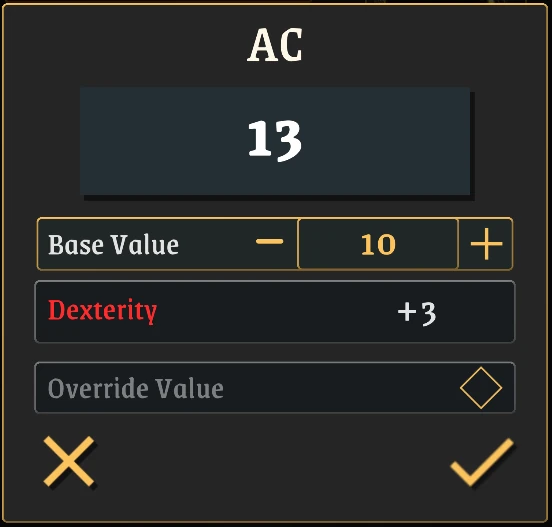
As a Creator, you can break down a complex Formula into multiple components - each a separate Formula. This is useful to help the Player better understand how a value is computed, as they will see the breakdown in the app
Input
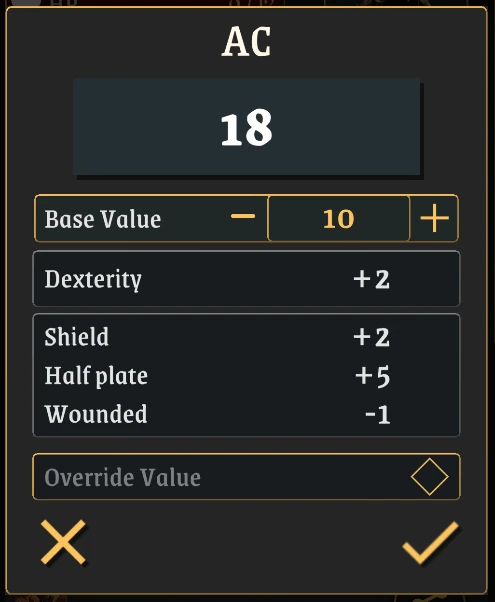
Sometimes, you want the Player to have an input on how an attribute's value is calculated.
Think Rank, Proficiency, or Training.
To use Player Input in a Formula, use the character x. This will be replaced by whatever value the Player uses as input, and opens up extra options:
- Input Type: control what values the Player can use as input for this Attribute
- Input Label: Similar to the Formula Label, use this to communicate to the Player what the input means
- Custom Options (if you picked Custom Input Type): add specific options to be used as input; these can even include references to other attributes, such as {Strength}
!!! info
Some visual elements for Attributes have special widgets that allow Players easy control and information to the attribute's Input, for most input types

Range (Min - Max)
** Min and Max define a Range in which the attribute's final value (including bonuses and multipliers) will be constrained to
If one is not provided, the minimum/maximum integer value is used (a huge negative/positive number)
If both Min and Max are provided, the number will act as a constant.
Remember you can use Formulas for Min and Max values. This is useful for scenarios like Health, which you can place with
Min: 0
Max: {Max Health}
This would ensure a Character's health can never go below 0, and can never go above their Max Health.
Info
The Player can always Override the value of an Attribute in the Character Sheet, ignoring any rules.
Dice Pools:
Dice Pools represent a pool of dice, something the player can potentially roll.
They may or may not include a numeric value also, eg: 2d6 + d10 or d8 + 4
Similar to Numeric Attributes, they support Formulas, but because formulas evaluate to a number, you might want to use a Macro instead:
Dice Macro
You can use a Macro to compute a Dice Pool's value automatically.
A Formula within [ ] will be evaluated to a single number, which can be used in defining a dice formula.
Examples:
Level*d10 -> ERROR
This treats everything as a numeric expression, with a non-deterministic result (it can have different values depending on what the d10 rolls)
[Level]d10 --> Correct
This interprets the expression as a Macro, and the result is an ad literam text where [Level] is replaced by the Character level,
resulting, for example, in 4d10 for a Character Level 4.
Info
The Player can always Override the value of an Attribute in the Character Sheet, ignoring any rules.